How to compress an image under 100 KB
A form can reject a perfectly good photo because the file is too large. File size and picture dimensions are different: KB measures storage, while pixels measure width and height. Start with the upload form’s requirements for both. Keep your original so you can try another setting without repeatedly compressing an already compressed copy.
Open make pictures smaller →Step by step
Add your picture
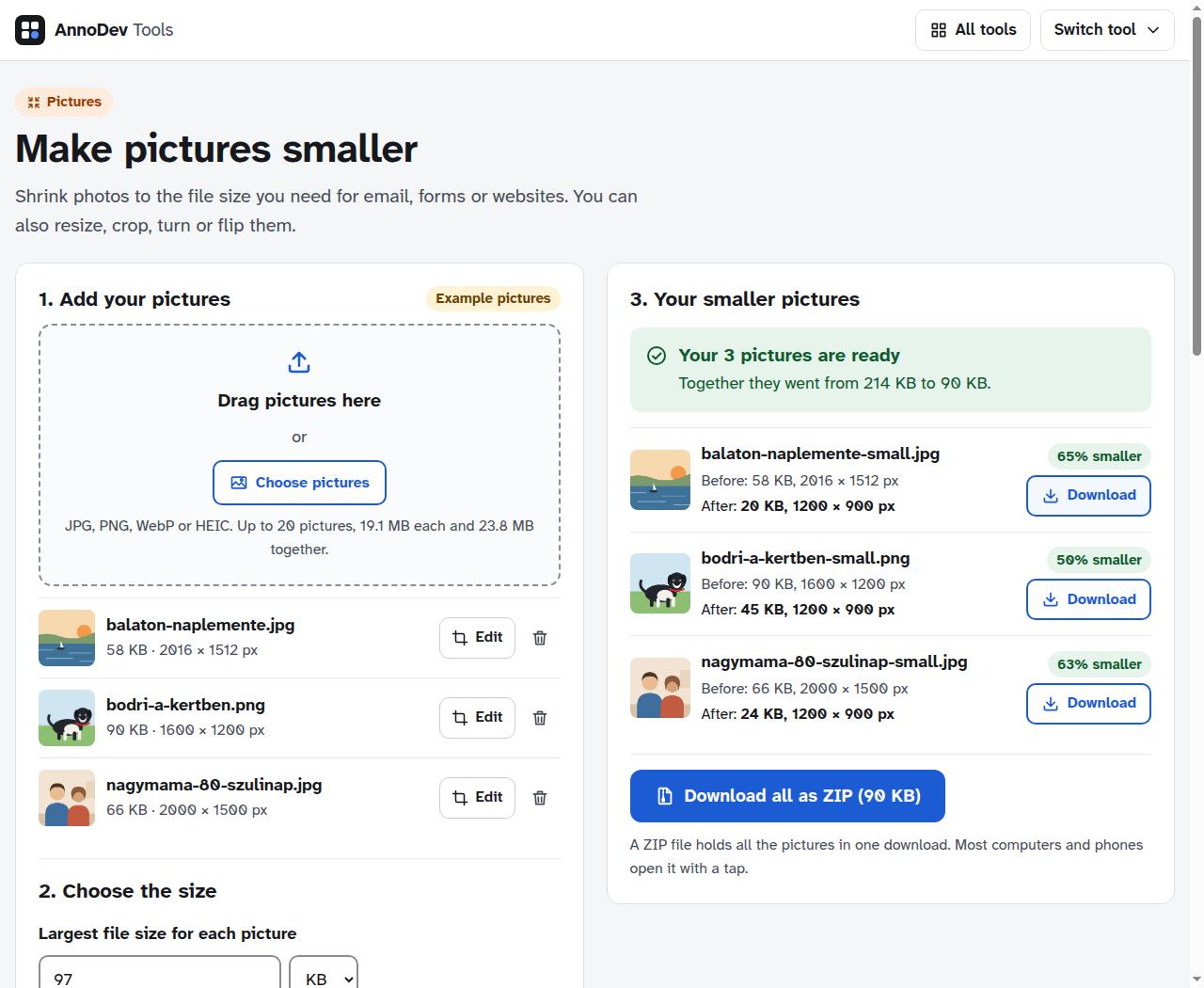
Open the image compressor and add a JPG, PNG, WebP or HEIC file. You can also choose “Use example pictures” to practise with the illustrated samples shown here. Files you submit are processed on the AnnoDev server.
Choose a safe file-size limit
Set the size limit to 97 KB for a strict 100,000-byte maximum. This tool uses 1,024 bytes per KB, so 100 KB means 102,400 bytes; 97 KB leaves a little room below either interpretation. Keep the upload form’s required dimensions if it specifies them.
Reduce dimensions only when allowed
For an ordinary web image, try a longest side of 1,200 pixels. If the form demands an exact width and height, use its values instead. Reducing dimensions loses detail, so avoid making a photo smaller than you need.
Make the result and inspect it
Press “Make pictures smaller”. Check the before/after dimensions, file size and any warning. Download the result, open it at its intended display size, and check that faces, lettering and fine edges remain readable before uploading it.
A worked example
Tested with the built-in illustrated lake sample: 2,016 × 1,512 pixels became 1,200 × 900 pixels. With a 97 KB limit, the downloaded JPG was 20,854 bytes. This sample is an illustration; a detailed photograph may need different settings and will not necessarily shrink by the same amount.
Questions and troubleshooting
The picture still looks blurry
Return to the original. If dimensions are flexible, try a smaller width with gentler compression; if text is the subject, keep enough pixels to read it. A very small file limit can make a detailed image unsuitable. Do not assume reaching the byte limit means acceptable visual quality.
The upload form still rejects it
Check its permitted file types, exact dimensions and byte limit. JPG is commonly useful for photos; PNG is useful when transparency is required. Changing the filename extension does not convert a file. Choose the required output format in the tool and download a new result.
The image was already small enough
The tool may keep an original that already meets the limit. The result explicitly says when this happens. You do not need to degrade a file just to make the percentage saving larger.
Ready to try it? Make pictures smaller is free to use. Files and text you submit are processed on the AnnoDev server.
Browse all practical guides