How to print a large poster on A4 pages
A normal printer can make a large poster by printing sections of one picture on separate sheets. The poster tool creates the tiled PDF; your PDF viewer and printer control the final print scale. Plan the sheet count before printing so you can check size and paper use.
Open print a big picture →Step by step
Add a clear source picture
Open the poster maker, add your image or choose “Use an example picture”. A large poster needs enough source detail. Enlarging a tiny picture does not create missing detail.
Choose the poster and paper size
Use “Sheets across” or a width in centimetres, select A4, and choose each sheet’s orientation. Read the updated plan: the number of rows depends on your image’s shape, margins, overlap and paper orientation.
Keep space for the joins
Set a white edge your printer can handle and keep some overlap. Leave cut lines and corner labels enabled for the first attempt. The repeated image at the overlap helps you align adjoining sheets.
Download and print the PDF
Press “Make the pages”, then “Download PDF”. Open the actual file and check page count. In the print dialog choose Actual size or 100%, rather than Fit to page. Test one sheet before printing the whole poster.
Arrange before trimming
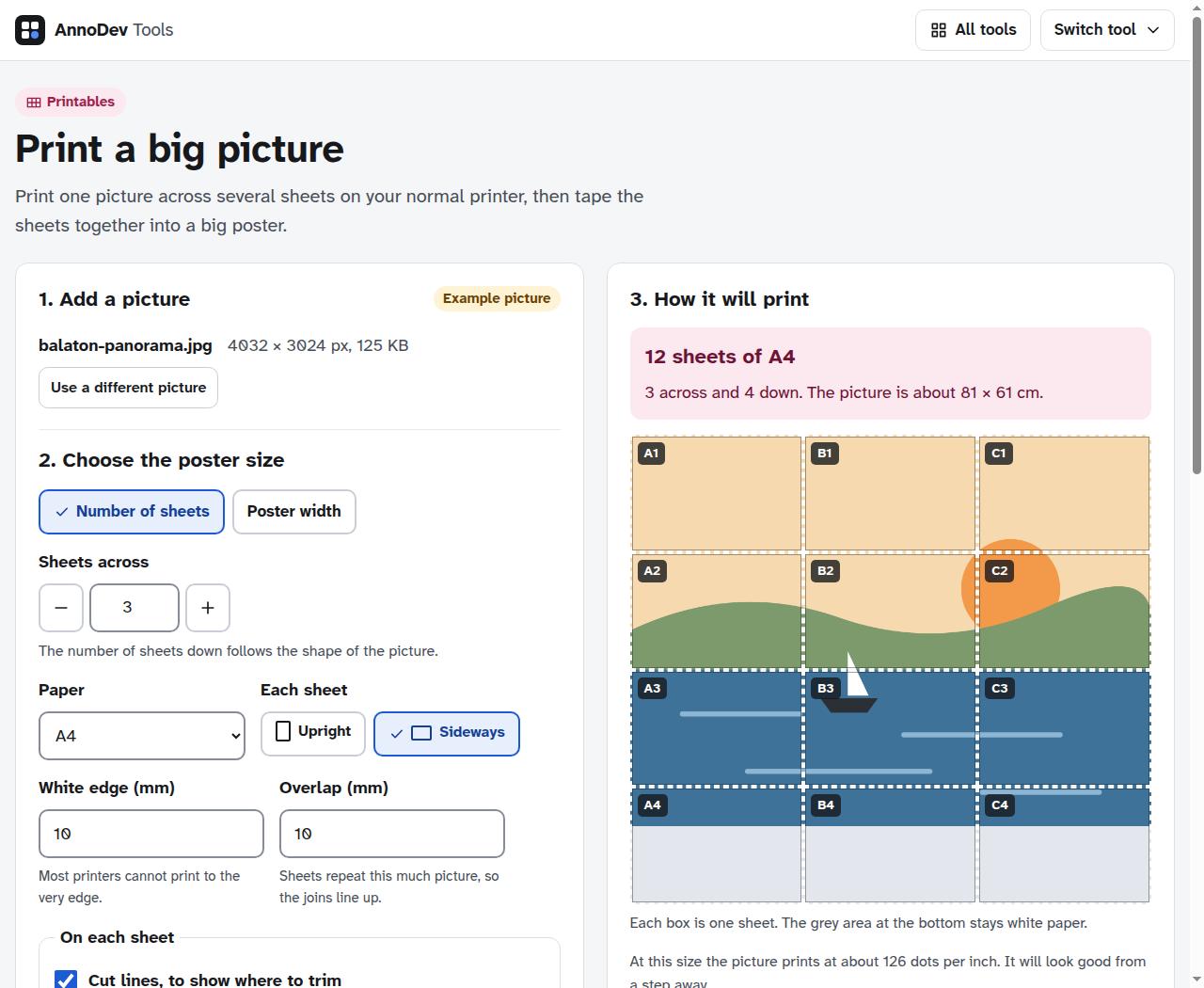
Lay the sheets out using their labels: A1, B1 and C1 are the first row in the example. Match overlapping picture details, trim only the edges needed for each join, and tape from the back. Check alignment before permanently attaching sheets.
A worked example
The built-in 4,032 × 3,024 illustrated example, with the default three sheets across, produced a 12-page A4 PDF: three columns and four rows. We checked the downloaded PDF’s page count. This is a software-verified example, not a claim that we physically printed this poster.
Questions and troubleshooting
The joins do not line up
First check that every page used the same paper orientation and 100% print scale. Automatic shrinking can change the planned overlap. Do not switch settings halfway through a set.
The result looks soft
Use a larger original or make a smaller poster. Consider the intended viewing distance: a wall poster seen from across a room needs less close-up detail than a print held in your hands.
Ready to try it? Print a big picture is free to use. Files and text you submit are processed on the AnnoDev server.
Browse all practical guides